


Lorem ipsum dolor sit amet, dolor siterim consectetur adipiscing elit. Phasellus duio faucibus est sed facilisis viverra. Umero praesent nec accumsan nibh, eu grav da metus.
This is a demo store for testing purposes — no orders shall be fulfilled. Dismiss
 Jamaica
Jamaica
Jamaica
2 min read
If you’ve forgotten your password or can’t log in, don’t worry — resetting your password is quick and secure.
This guide walks you through step by step how to regain access to your account.
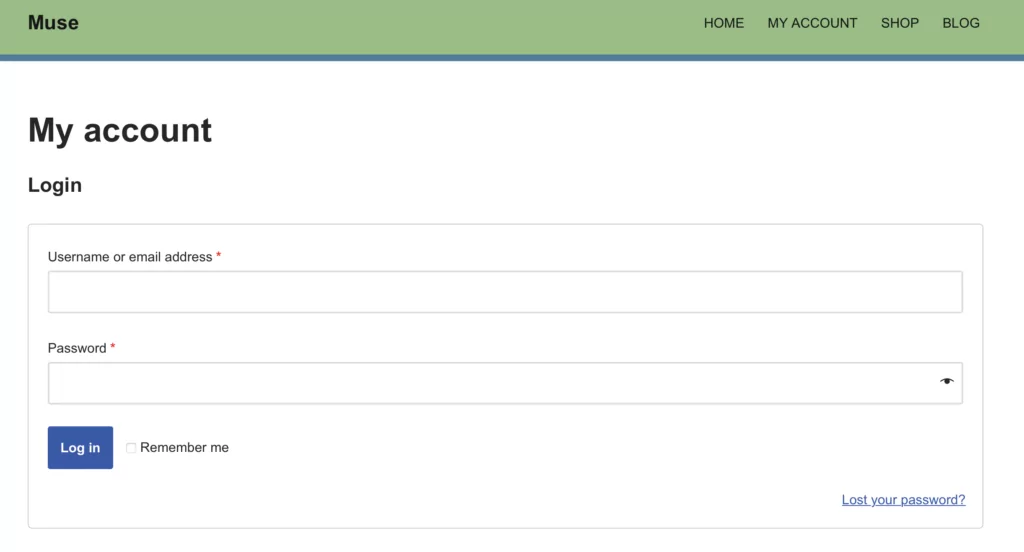
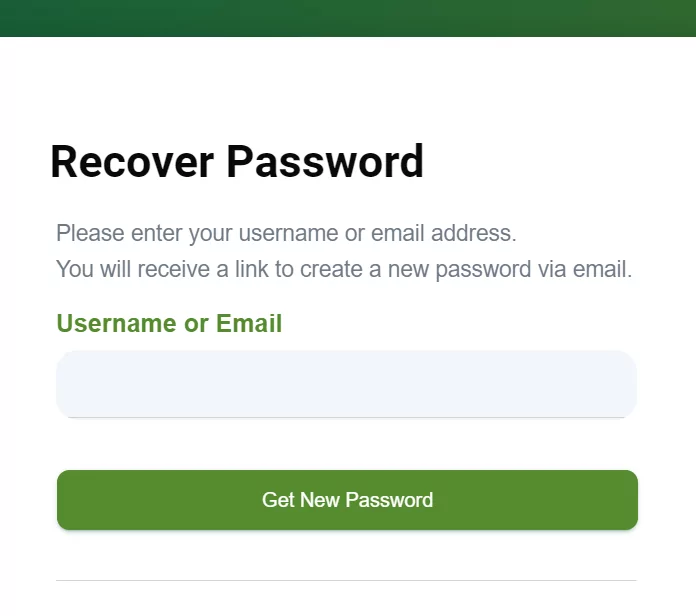
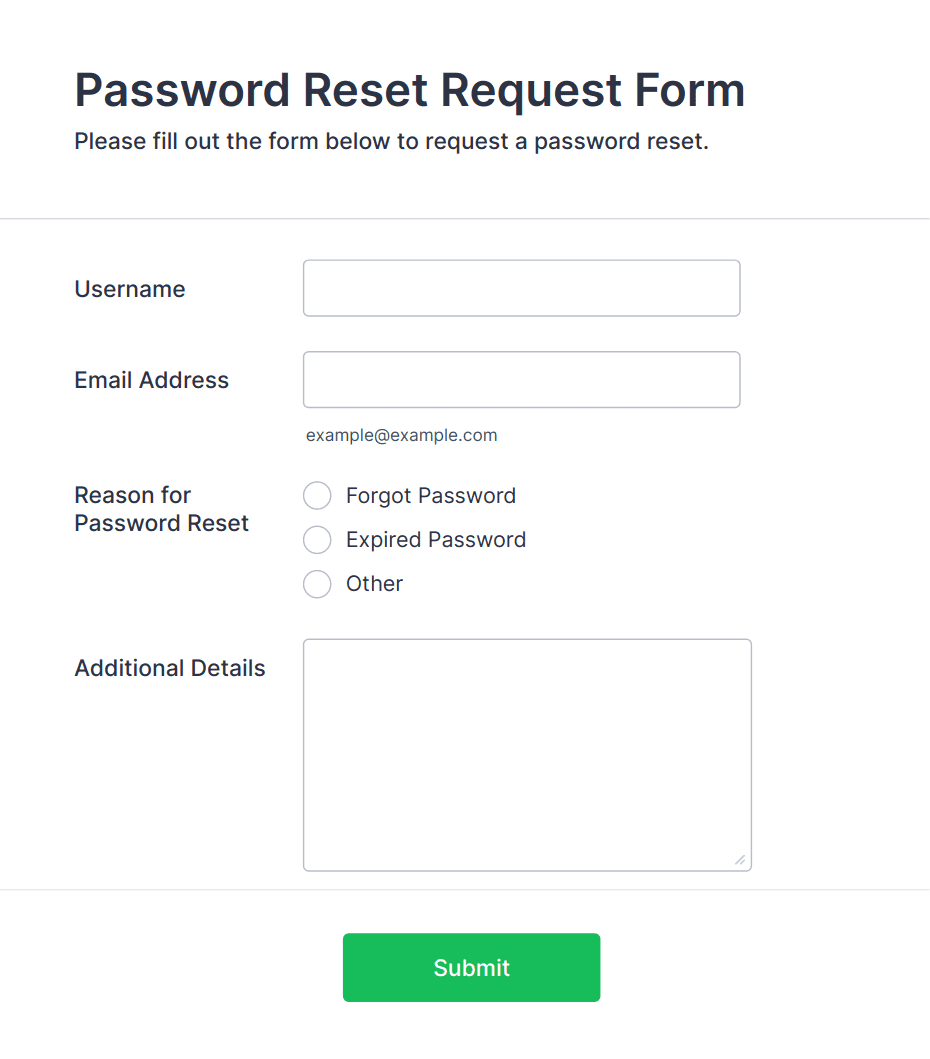
On the password reset page:
📧 Make sure this is the same email you used when signing up.
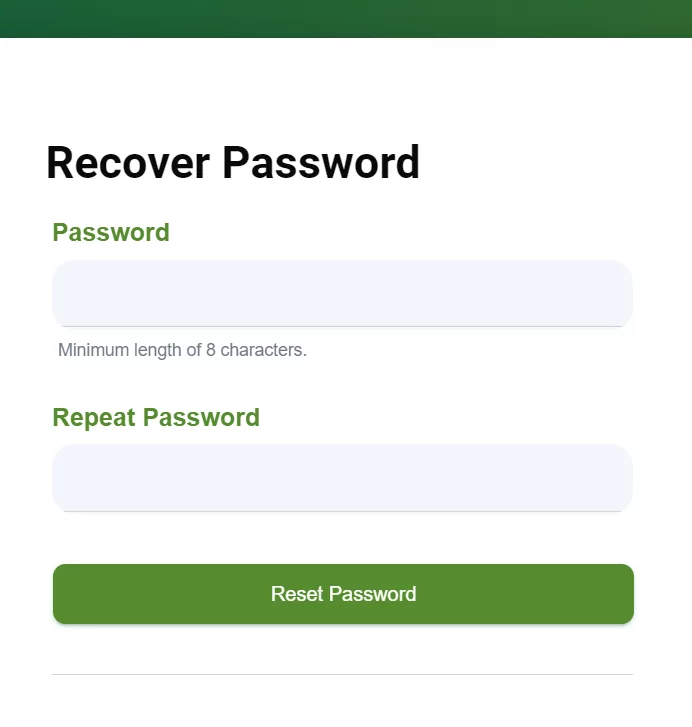
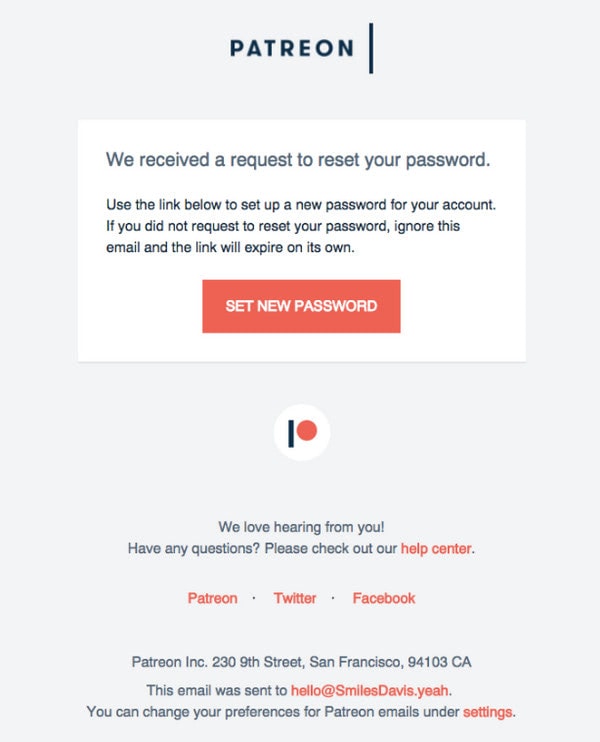
After submitting your request:
📌 If you don’t see it, check your Spam or Junk folder.

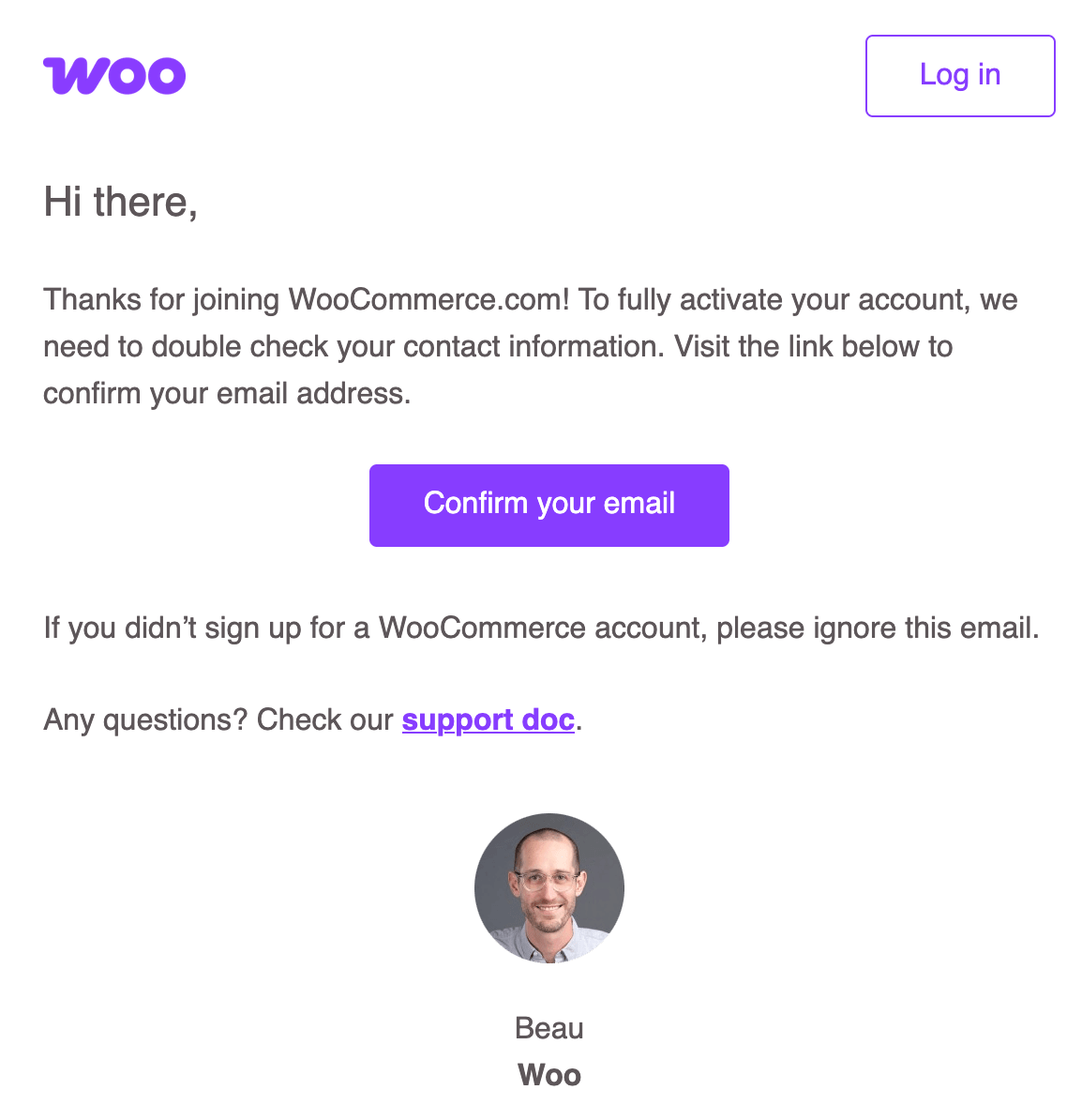
After clicking the reset link:
🔐 Choose a strong password that you don’t use on other websites.
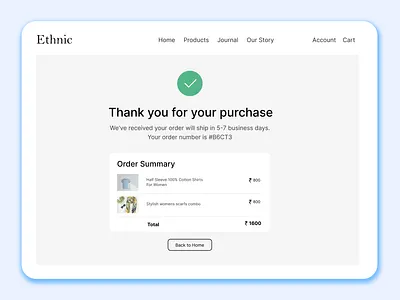
Return to the My Account page and log in using:
If the email doesn’t arrive:
🔄 You can request another reset if needed.
✔ Never share your password
✔ Log out on shared or public devices
✔ Update your password regularly
✔ Use a unique password for Kingston Express
Contact Kingston Express Support if:
📌 Provide your full name and the email used for your account.
Password resets are designed to keep your account secure. If you ever get stuck, help is always available so you can get back to shopping quickly 😊



This chat uses automated responses for general guidance. For binding terms, please refer to our official policies.
Start A Conversation
Click here to chat with me!
Search our website now
Latest Products
Latest Posts
Tips how to choise a perfect watch foractive guys
Lorem ipsum dolor sit amet, dolor siterim consectetur adipiscing elit. Phasellus duio faucibus est sed facilisis viverra. Umero praesent nec accumsan nibh, eu grav da metus.
Harman Kadon Onyx Studio Mini, Reviews & Experiences
Lorem ipsum dolor sit amet, dolor siterim consectetur adipiscing elit. Phasellus duio faucibus est sed facilisis viverra. Umero praesent nec accumsan nibh, eu grav da metus.
Lorem ipsum dolor sit amet, dolor siterim consectetur adipiscing elit. Phasellus duio faucibus est sed facilisis viverra. Umero praesent nec accumsan nibh, eu grav da metus.
Lorem ipsum dolor sit amet, dolor siterim consectetur adipiscing elit. Phasellus duio faucibus est sed facilisis viverra. Umero praesent nec accumsan nibh, eu grav da metus.
Lorem ipsum dolor sit amet, dolor siterim consectetur adipiscing elit. Phasellus duio faucibus est sed facilisis viverra. Umero praesent nec accumsan nibh, eu grav da metus.

Subscribe to the Martfury mailing list to receive updates on new arrivals, special offers and our promotions.