

Lorem ipsum dolor sit amet, dolor siterim consectetur adipiscing elit. Phasellus duio faucibus est sed facilisis viverra. Umero praesent nec accumsan nibh, eu grav da metus.
This is a demo store for testing purposes — no orders shall be fulfilled. Dismiss
 Jamaica
Jamaica
Jamaica
1 min read
Becoming a seller on Kingston Express allows you to list products, manage orders, and reach customers across Jamaica (and internationally, if enabled).
This guide walks you step by step through registering as a seller using the **Dokan Multivendor system.
Make sure you have:
📌 Seller accounts require approval before you can start selling.
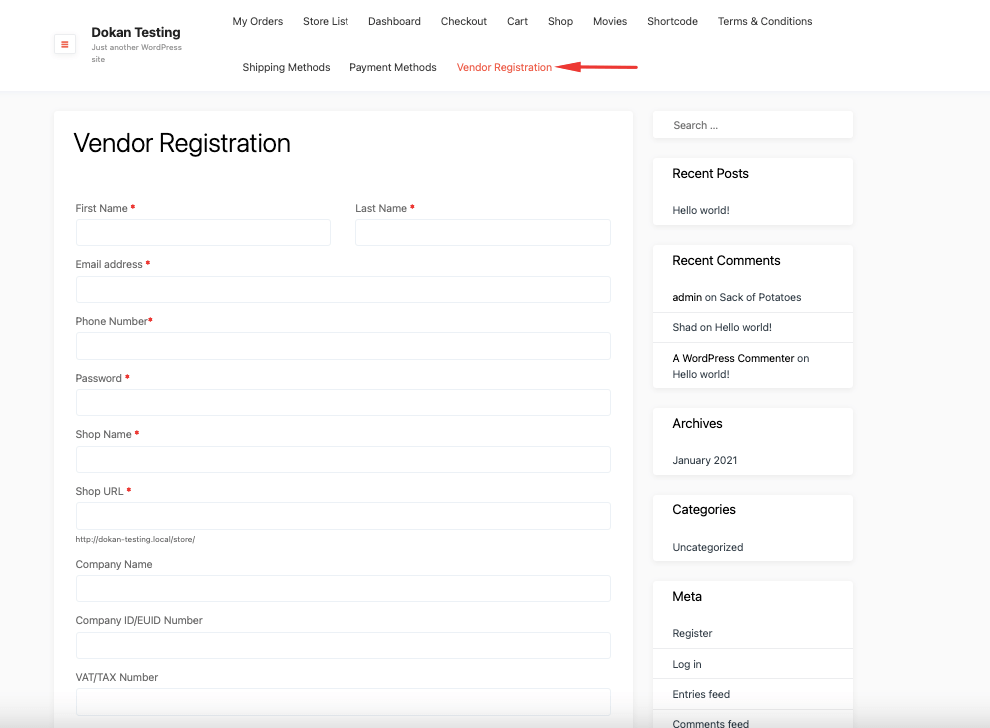
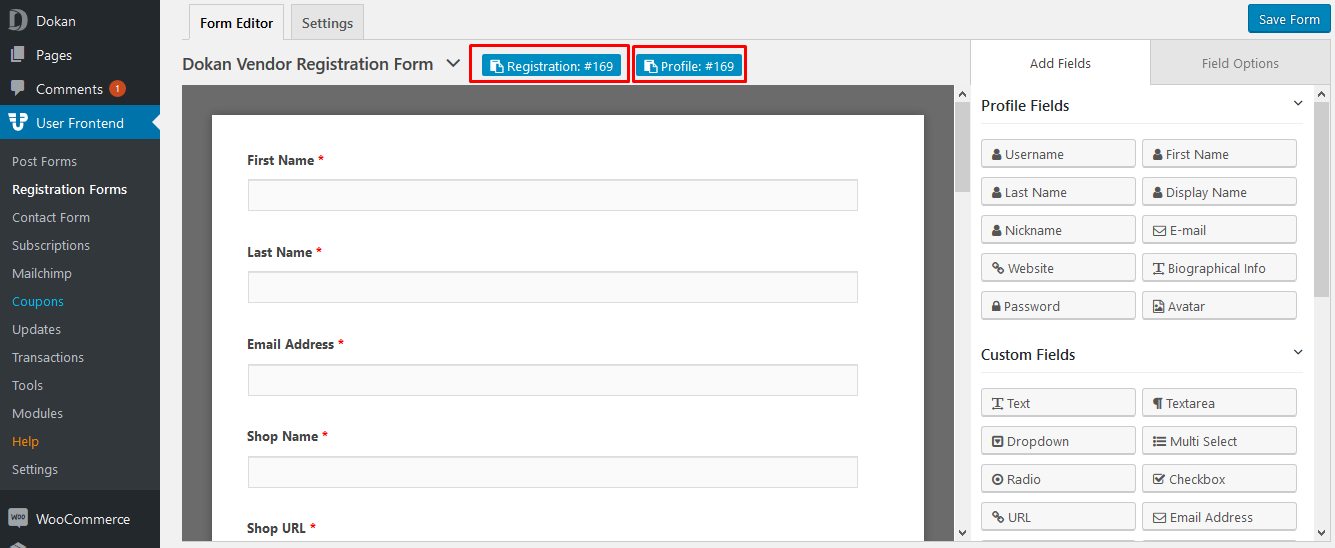
You’ll be asked to enter:
📝 Choose your store name carefully — it represents your brand.
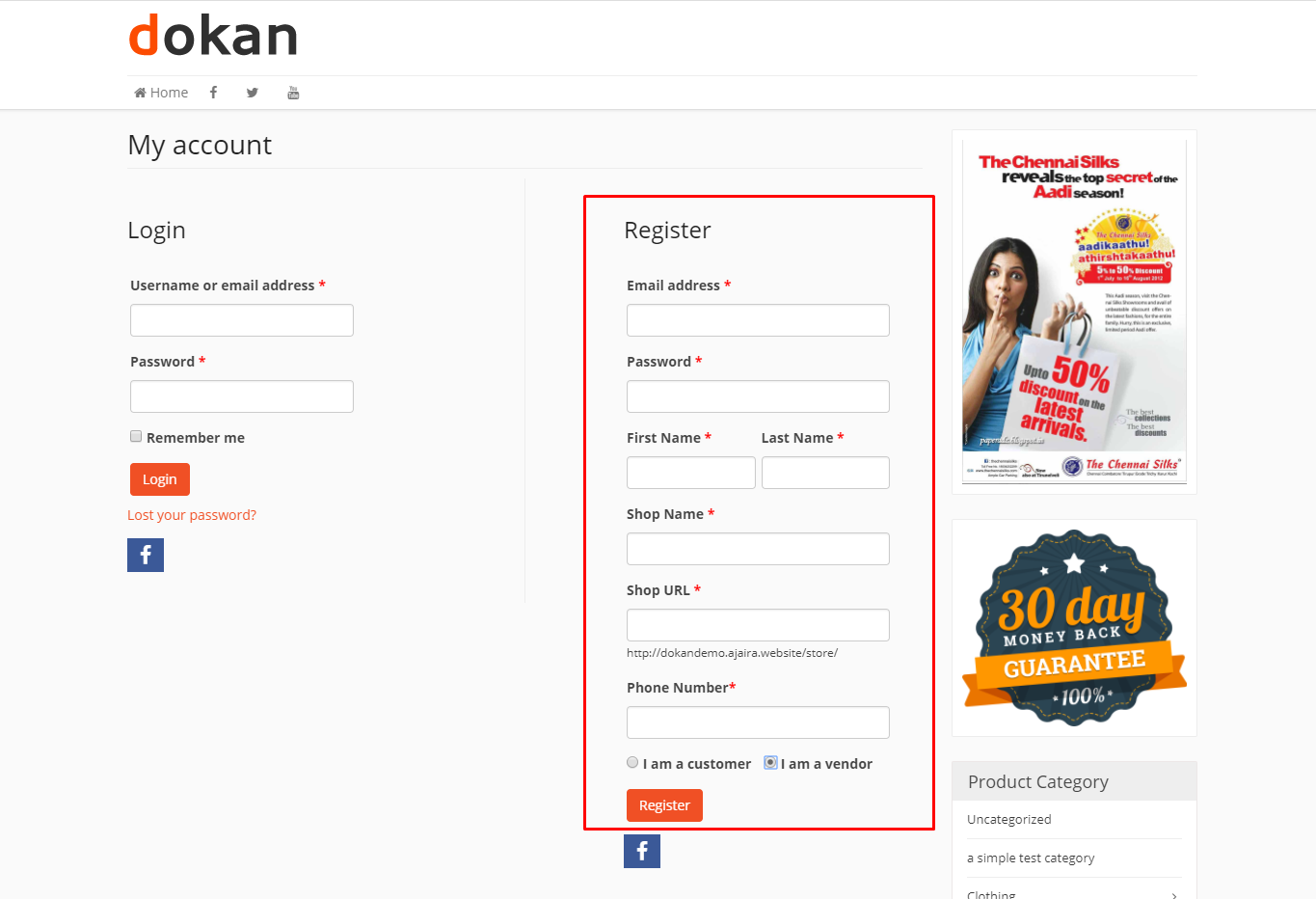
On the registration form:
✔ Check the box that says “I am a vendor” or “Register as a Seller”
⚠️ If this box is not checked, your account will be created as a customer only.
After completing the form:
📧 You may receive an email confirming your registration.
After registering:
⏳ Approval time may vary.
Once approved:
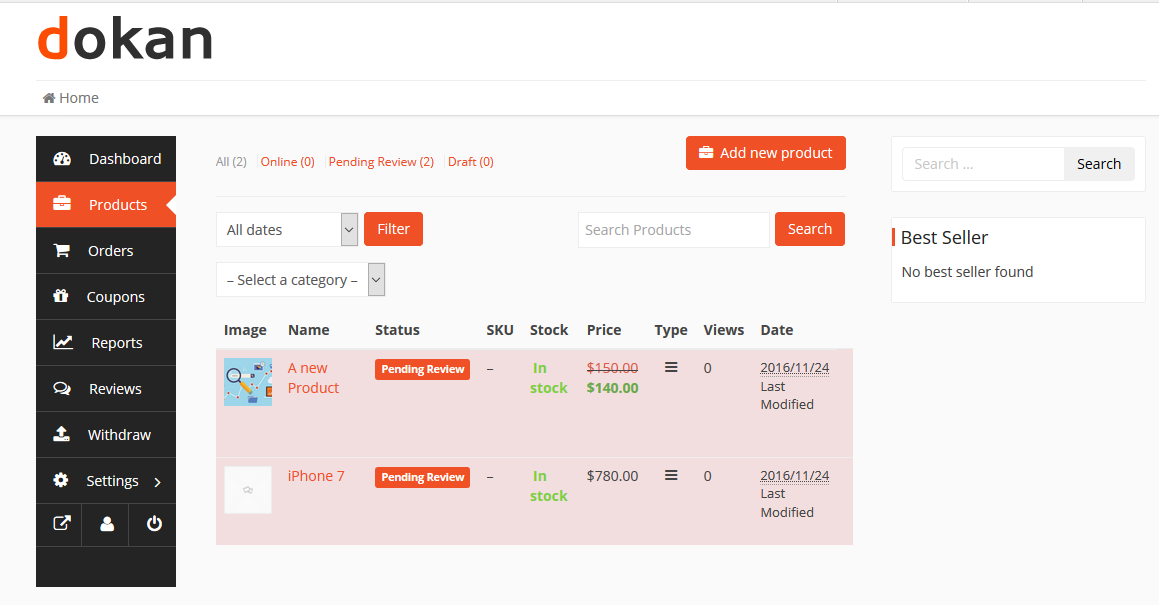
If you don’t see seller features:
📌 Do not create multiple seller accounts.
➡ You’ll need to contact support to convert your account.
➡ Try a unique variation (e.g. add “Shop”, “Store”, or your location).
➡ Check Spam/Junk or wait a few minutes and retry.
✔ Use a professional store name
✔ Keep your login details safe
✔ Watch your email for approval updates
✔ Prepare product info while waiting
Registering as a seller is the first step to building your business on Kingston Express. Once approved, you’ll unlock powerful tools to manage products, orders, and customers 🏪


This chat uses automated responses for general guidance. For binding terms, please refer to our official policies.
Start A Conversation
Click here to chat with me!
Search our website now
Latest Products
Latest Posts
Lorem ipsum dolor sit amet, dolor siterim consectetur adipiscing elit. Phasellus duio faucibus est sed facilisis viverra. Umero praesent nec accumsan nibh, eu grav da metus.
B&O Play – Best Headphone For You
Lorem ipsum dolor sit amet, dolor siterim consectetur adipiscing elit. Phasellus duio faucibus est sed facilisis viverra. Umero praesent nec accumsan nibh, eu grav da metus.
Harman Kadon Onyx Studio Mini, Reviews & Experiences
Lorem ipsum dolor sit amet, dolor siterim consectetur adipiscing elit. Phasellus duio faucibus est sed facilisis viverra. Umero praesent nec accumsan nibh, eu grav da metus.
DeerCo – A New Look About Startup In Product Manufacture Field
Lorem ipsum dolor sit amet, dolor siterim consectetur adipiscing elit. Phasellus duio faucibus est sed facilisis viverra. Umero praesent nec accumsan nibh, eu grav da metus.
Tips how to choise a perfect watch foractive guys
Lorem ipsum dolor sit amet, dolor siterim consectetur adipiscing elit. Phasellus duio faucibus est sed facilisis viverra. Umero praesent nec accumsan nibh, eu grav da metus.

Subscribe to the Martfury mailing list to receive updates on new arrivals, special offers and our promotions.