

Lorem ipsum dolor sit amet, dolor siterim consectetur adipiscing elit. Phasellus duio faucibus est sed facilisis viverra. Umero praesent nec accumsan nibh, eu grav da metus.
This is a demo store for testing purposes — no orders shall be fulfilled. Dismiss
 Jamaica
Jamaica
Jamaica
2 min read
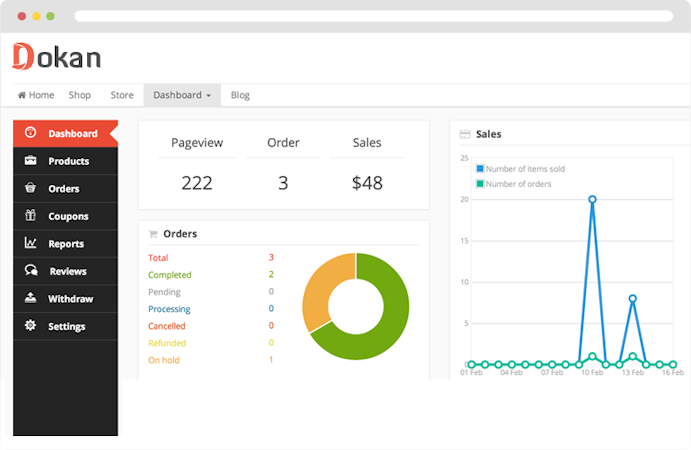
The Seller Dashboard is your control center on Kingston Express.
It’s where you manage products, orders, customers, payments, and your store settings — all in one place.
This guide breaks down each main section so you know exactly what everything does.
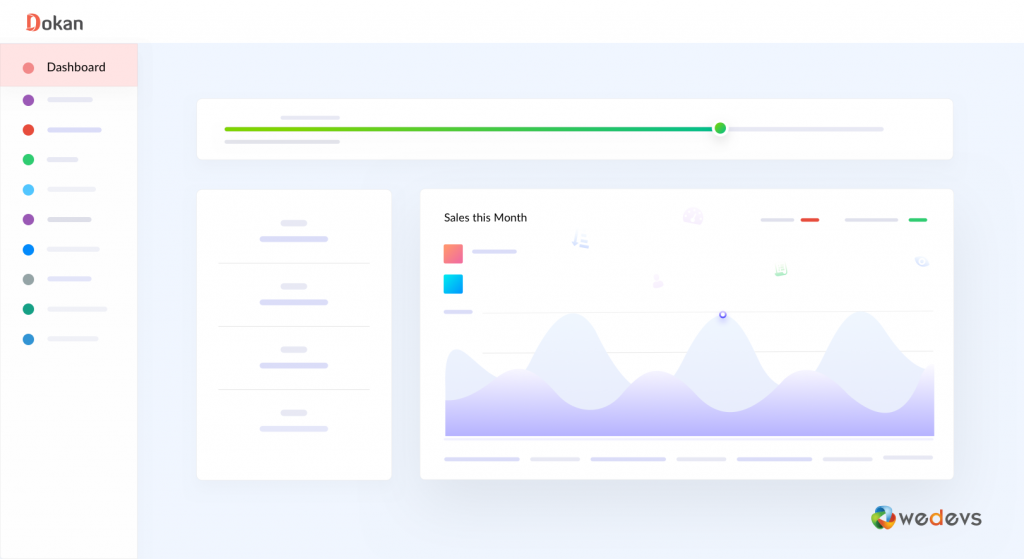
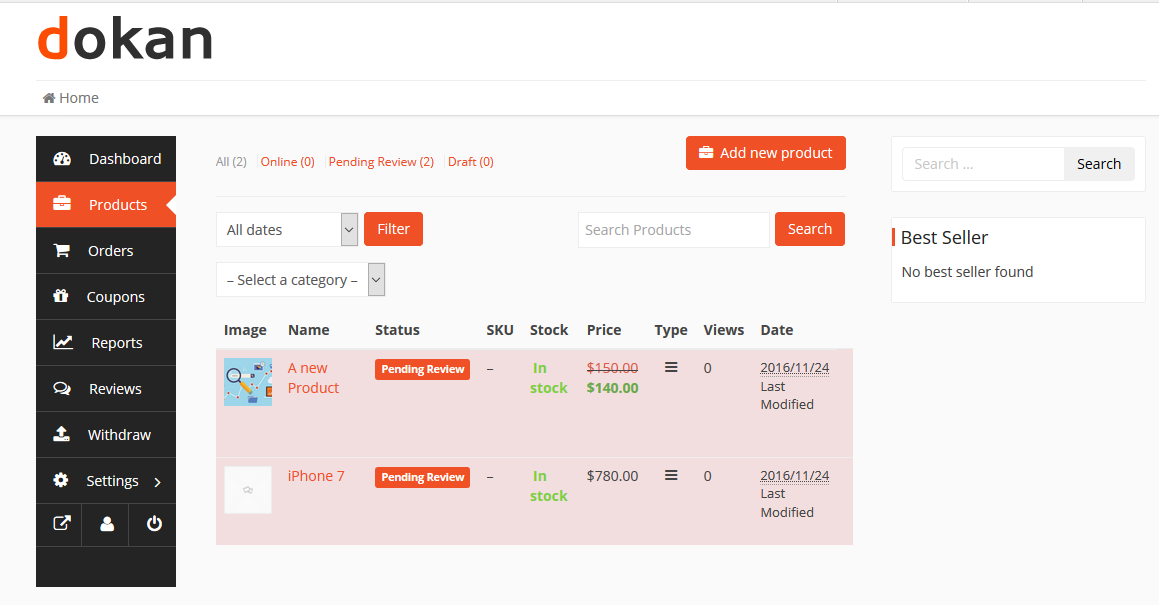
The Dokan Seller Dashboard is the backend area where sellers:
📌 Only approved sellers can access this dashboard.
When you first open the dashboard, you’ll see a summary of:
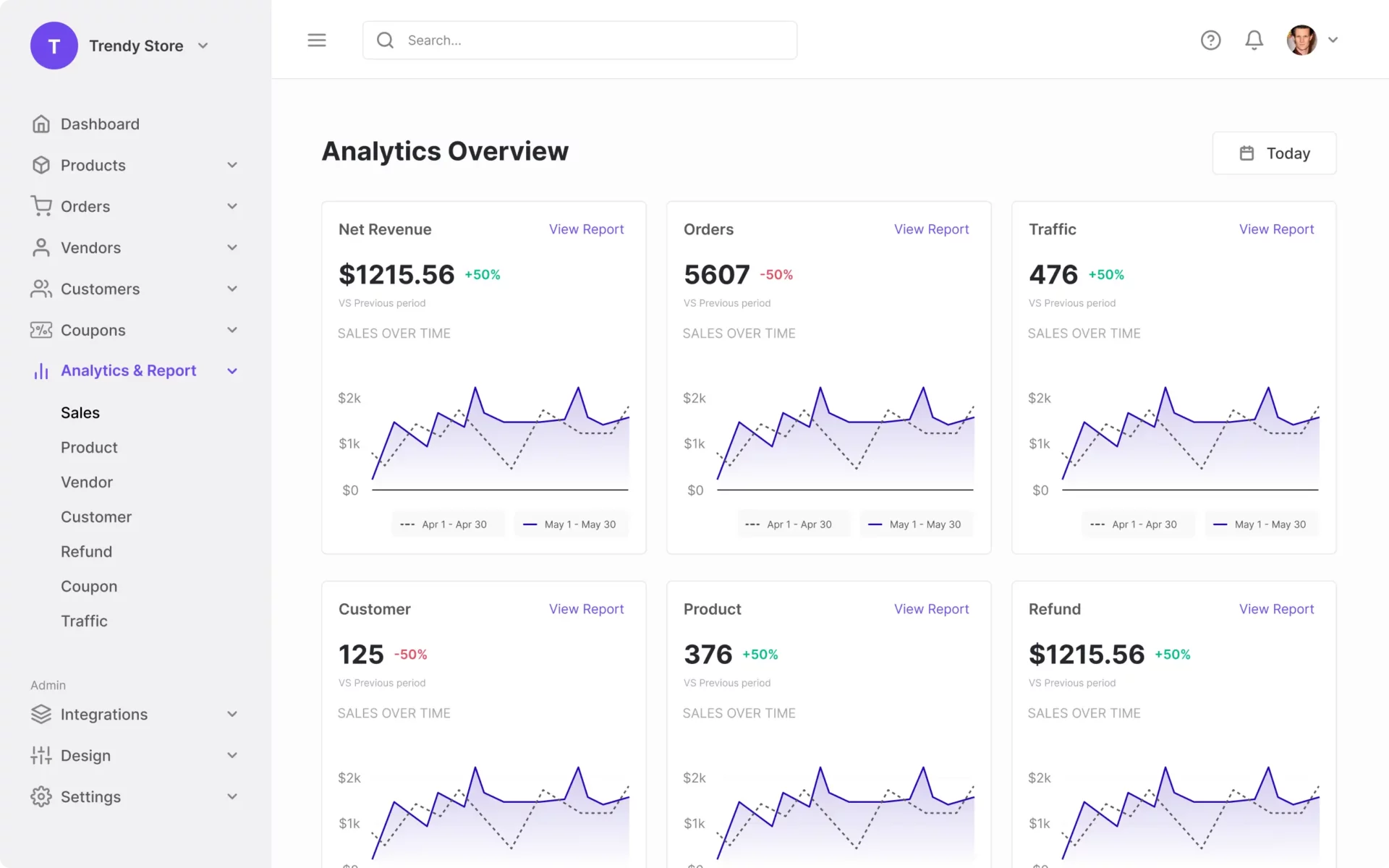
📊 This gives you a quick snapshot of how your store is performing.
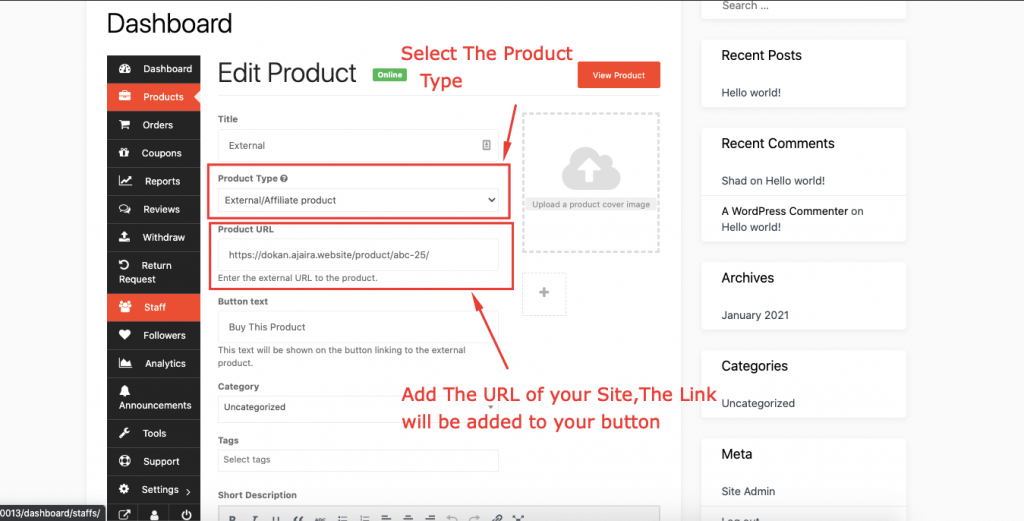
📦 This is where your store inventory lives.
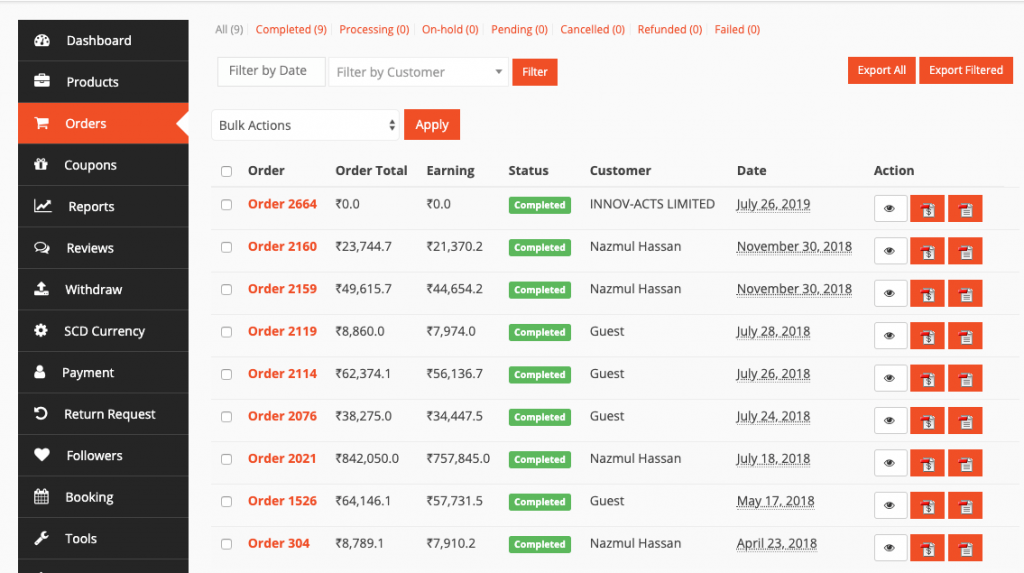
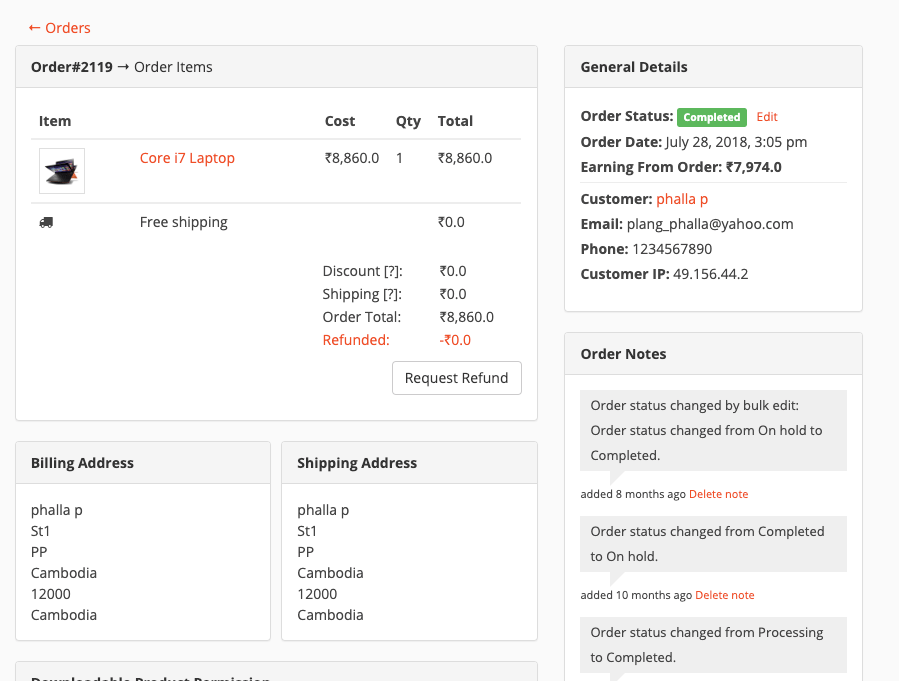
🛒 Fast order handling leads to better reviews.
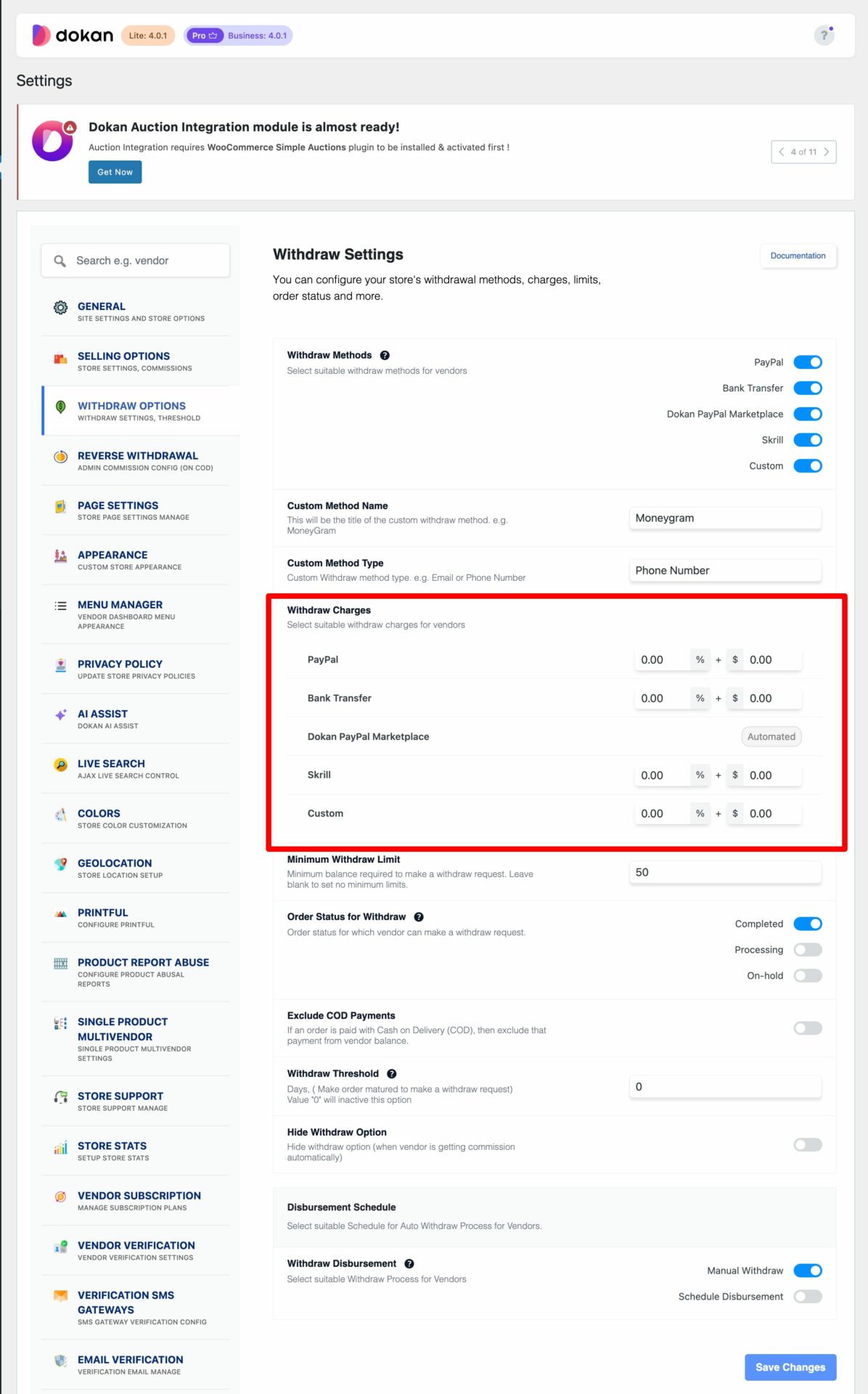
💰 Withdrawals depend on marketplace rules and schedule.
Here you can:
🏪 A complete store profile builds customer trust.
⭐ Good ratings improve visibility and sales.
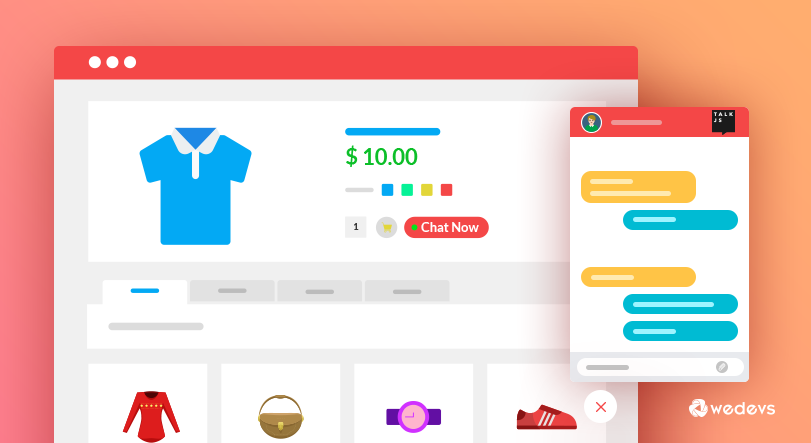

Use this area to:
💬 Fast replies = happier customers.
✔ Use the left menu to move between sections
✔ Save changes before leaving pages
✔ Use desktop for bulk product management
✔ Check dashboard daily for orders
❌ Ignoring new orders
❌ Forgetting to update stock
❌ Leaving store profile incomplete
❌ Not responding to messages
📌 Consistency matters.
Once you understand the Seller Dashboard, everything else becomes easier.
Master this area first — it’s the foundation of your success on Kingston Express 🚀


This chat uses automated responses for general guidance. For binding terms, please refer to our official policies.
Start A Conversation
Click here to chat with me!
Search our website now
Latest Products
Latest Posts
Lorem ipsum dolor sit amet, dolor siterim consectetur adipiscing elit. Phasellus duio faucibus est sed facilisis viverra. Umero praesent nec accumsan nibh, eu grav da metus.
B&O Play – Best Headphone For You
Lorem ipsum dolor sit amet, dolor siterim consectetur adipiscing elit. Phasellus duio faucibus est sed facilisis viverra. Umero praesent nec accumsan nibh, eu grav da metus.
Harman Kadon Onyx Studio Mini, Reviews & Experiences
Lorem ipsum dolor sit amet, dolor siterim consectetur adipiscing elit. Phasellus duio faucibus est sed facilisis viverra. Umero praesent nec accumsan nibh, eu grav da metus.
DeerCo – A New Look About Startup In Product Manufacture Field
Lorem ipsum dolor sit amet, dolor siterim consectetur adipiscing elit. Phasellus duio faucibus est sed facilisis viverra. Umero praesent nec accumsan nibh, eu grav da metus.
Tips how to choise a perfect watch foractive guys
Lorem ipsum dolor sit amet, dolor siterim consectetur adipiscing elit. Phasellus duio faucibus est sed facilisis viverra. Umero praesent nec accumsan nibh, eu grav da metus.

Subscribe to the Martfury mailing list to receive updates on new arrivals, special offers and our promotions.