

Lorem ipsum dolor sit amet, dolor siterim consectetur adipiscing elit. Phasellus duio faucibus est sed facilisis viverra. Umero praesent nec accumsan nibh, eu grav da metus.
This is a demo store for testing purposes — no orders shall be fulfilled. Dismiss
 Jamaica
Jamaica
Jamaica
2 min read
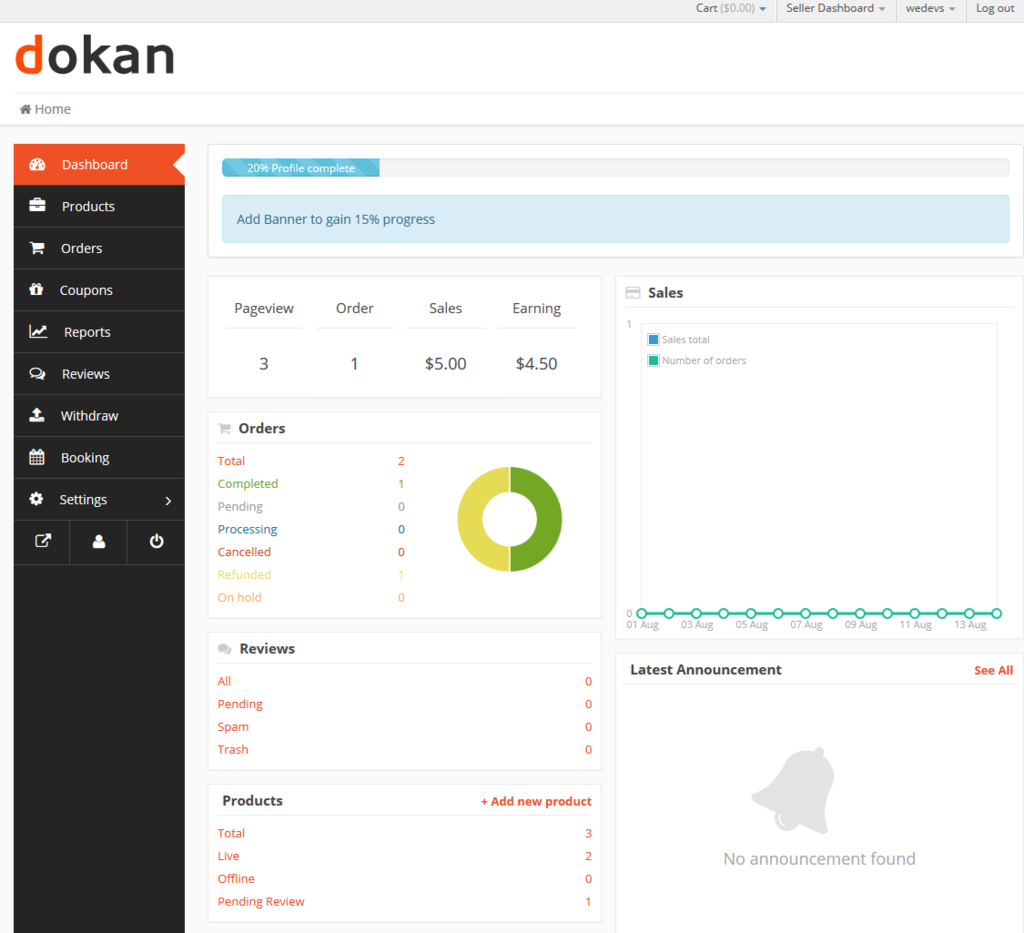
Your store name, logo, and banner are the first things customers notice.
A clean, professional setup helps your store look trustworthy and memorable — even if you’re just starting out.
This guide shows you how to set them up properly using the **Dokan Multivendor seller dashboard.

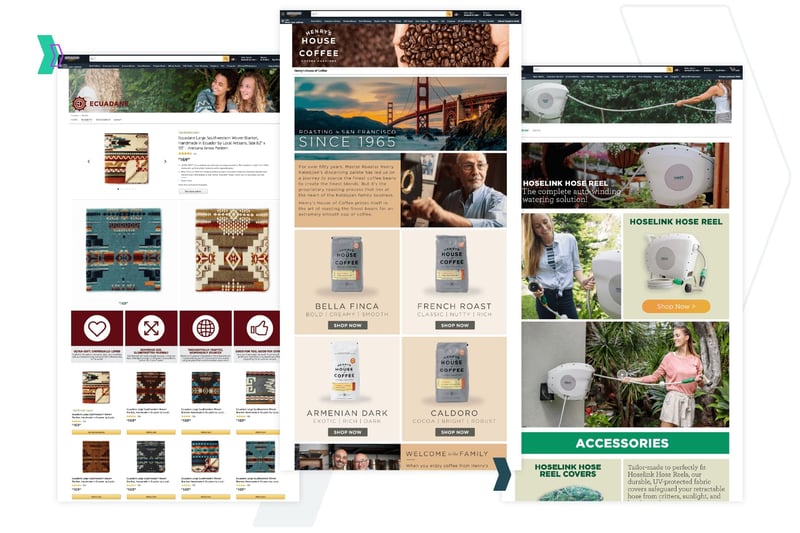
Good branding helps you:
📌 Customers are more likely to buy from stores that look complete.
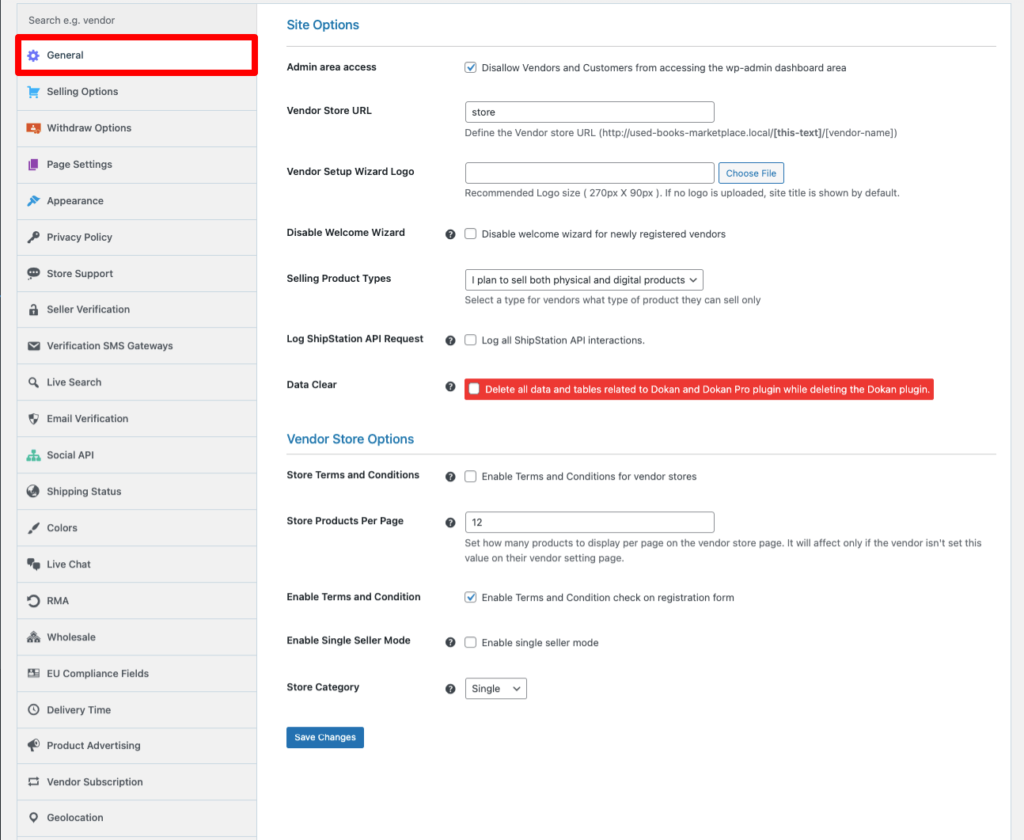
📝 Good examples:
✔ Kingston Fashion Hub
✔ Island Tech Store
❌ Avoid:
📌 Your store name appears everywhere — products, orders, and search results.

📸 Your logo appears next to your store name and products.
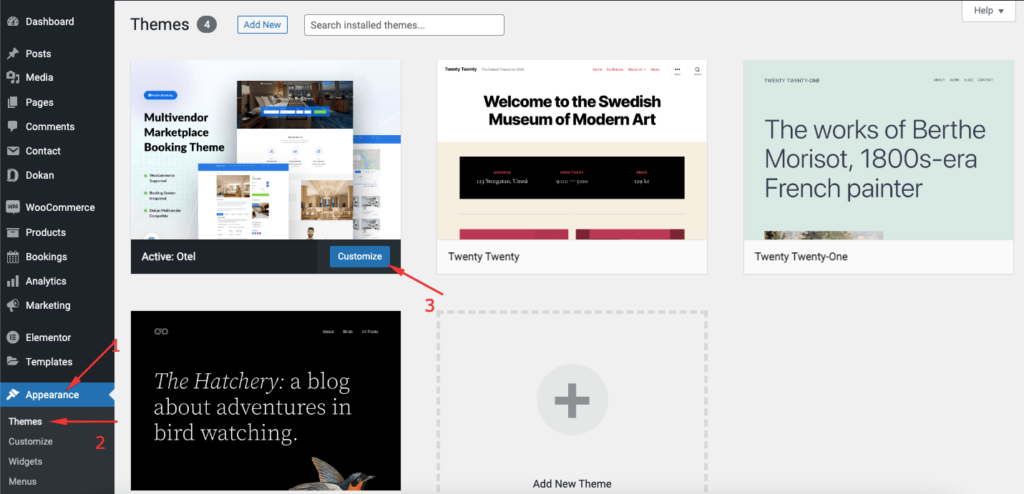
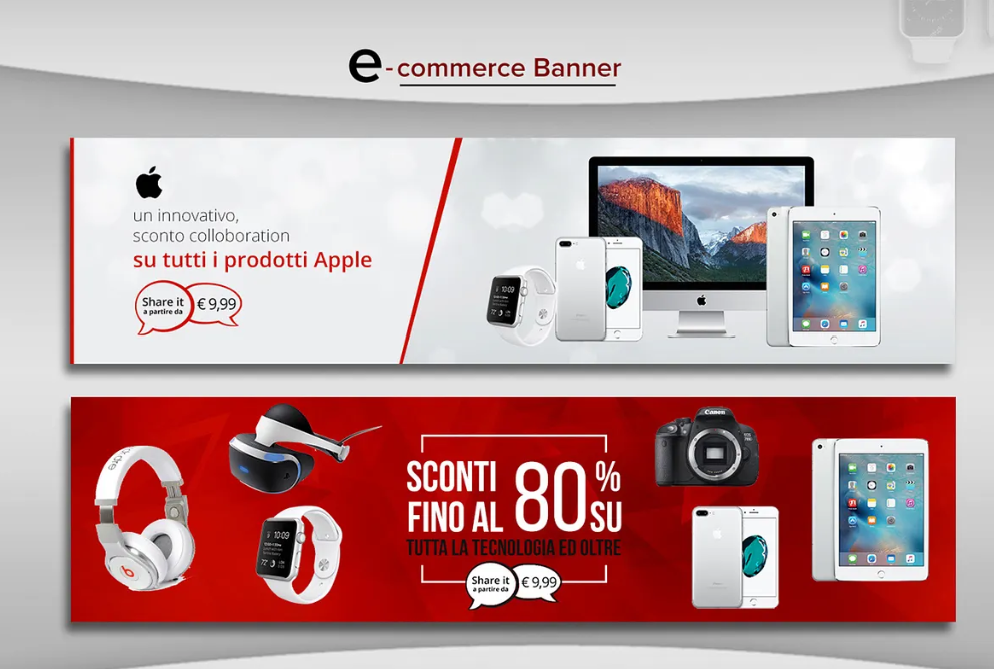
The banner is the large image at the top of your store page.
🖼️ A strong banner makes your store feel professional.
After uploading your logo and banner:
✅ Changes apply instantly.
Customers visiting your store will see:
🛍️ This directly affects buying decisions.
❌ Using low-quality or stretched images
❌ Leaving logo or banner empty
❌ Uploading text-heavy banners
❌ Changing branding too often
⚠️ Consistency builds recognition.
If you don’t have designs yet:
💡 Simple is better than nothing.
You don’t need a perfect brand on day one — but you do need a clear and professional look. A logo and banner instantly make your store feel legit and trustworthy ⭐



This chat uses automated responses for general guidance. For binding terms, please refer to our official policies.
Start A Conversation
Click here to chat with me!
Search our website now
Latest Products
Latest Posts
Tips how to choise a perfect watch foractive guys
Lorem ipsum dolor sit amet, dolor siterim consectetur adipiscing elit. Phasellus duio faucibus est sed facilisis viverra. Umero praesent nec accumsan nibh, eu grav da metus.
Harman Kadon Onyx Studio Mini, Reviews & Experiences
Lorem ipsum dolor sit amet, dolor siterim consectetur adipiscing elit. Phasellus duio faucibus est sed facilisis viverra. Umero praesent nec accumsan nibh, eu grav da metus.
Lorem ipsum dolor sit amet, dolor siterim consectetur adipiscing elit. Phasellus duio faucibus est sed facilisis viverra. Umero praesent nec accumsan nibh, eu grav da metus.
Lorem ipsum dolor sit amet, dolor siterim consectetur adipiscing elit. Phasellus duio faucibus est sed facilisis viverra. Umero praesent nec accumsan nibh, eu grav da metus.
Lorem ipsum dolor sit amet, dolor siterim consectetur adipiscing elit. Phasellus duio faucibus est sed facilisis viverra. Umero praesent nec accumsan nibh, eu grav da metus.

Subscribe to the Martfury mailing list to receive updates on new arrivals, special offers and our promotions.